In private testing on Android

What does your AI do for you?

Protean™ is one assistant that reshapes itself to the job in front of you: a conversation, a live map, a control panel, a readout from your tools.

Protean means able to take many forms. For Android phones and tablets. You bring your own AI.

Protean

Is the road to Kelowna clear this morning?

Highway 97 is open in both directions. The camera at the bridge shows wet pavement and light traffic.

And the weather there?

Six degrees and light rain, easing by noon.

Ask anything

6° · light rain

  • Road cameras
  • Fire
  • Your route

Panel

Workshop

  • Shop lightson
  • Air filteroff
  • Bench outleton
  • 3D printer62%

You said: turn the shop lights on

Bluetooth sensor

21.4°C

Low
19.8°
High
22.1°
Humidity
41%

Drawn illustration with sample data, not a photo of the app. Real screens are below.

You bring your own AI

Use an AI account you already have, your own server, or a small model that runs on the phone. Protean never charges you for access to your AI.

It lives on your phone

Conversations, settings and sign-ins are kept on your device. A question goes from your phone to the AI you chose; a map question sends the place you asked about to the map service. How your data moves.

You decide how much it may do

Permission modes run from locked down to hands-off, and you can switch by voice. A pay-per-use AI account needs your OK before it can bill you.

What it does

Seven verbs. One assistant.

Everything Protean can do sits under one of seven plain words. Each line below says honestly where it stands. This is a short selection; the full feature map has 132.

  • In the build
  • Built, not in a build yet
  • Planned

Taken from the app's own capability list for build 0.15.93, 14 November 2026. "In the build" means the feature is in that build. Testers have not yet checked every one on every phone.

Learn

Find things out, and remember them.

Try saying

  • When does the space station pass over tonight?
  • Remember that the spare key is in the blue toolbox.
  • What does this screen want me to do?

Everything under Learn

  • How-to help (In the build)

    Step-by-step answers that fit your situation.

  • Your notes (In the build)

    Searches and reads the notes in your own vault.

  • Remember this (In the build)

    Saves what you ask it to keep, in its memory file or your notes.

  • Daily briefing (In the build)

    Weather, calendar and flagged items when you open the app.

  • Help with what's on screen (In the build)

    Reads the app behind it and answers about it.

  • Sky and space (In the build)

    Sun, moon, planets, meteor showers and satellite passes.

  • Saved sources Built, not in a build yet

    Keep sources and refer back to them.

  • Learn a topic Planned

    Builds an indexed knowledge base in your vault and recalls it later.

Connect

Link it to your devices, computers, agents and accounts.

Try saying

  • What's the temperature sensor in the shop reading?
  • Anything from the school in my email today?
  • Copy this to my computer's clipboard.

Everything under Connect

  • Your own AI (In the build)

    Bring your own key or your own server. Paying per use needs your OK first.

  • AI on the phone (In the build)

    Download and run a small model on the phone itself.

  • Bluetooth gadgets (In the build)

    Find, connect and read Bluetooth sensors, meters and health devices.

  • Wi-Fi and network devices (In the build)

    Smart-home hubs, small sensor boards, 3D printers and printers.

  • Your computer (In the build)

    Screen, mouse and keyboard, clipboard and shared folders, with a companion program.

  • Plugins (In the build)

    Gmail, Google Calendar and Drive, Outlook, OneDrive, Notion and custom connectors.

  • Car diagnostics Built, not in a build yet

    Fault codes in plain language. It reads; it never writes to the car.

  • Electrical meters Built, not in a build yet

    Multimeter and clamp readings, logged, with a job report.

Share

Send things out: posts, photos, reports.

Try saying

  • Send God's Eye alerts to my Discord channel.
  • Send these street photos in.

Everything under Share

  • Your own Discord bot (In the build)

    Commands and map alerts in your channels. You tap before anything posts.

  • Contribute street photos (In the build)

    Send your street photos to Mapillary from the app.

  • Job paperwork and reports Planned

    Reports and labels from your measurements.

  • Report a bug or suggest an idea Planned

    From inside the app, during testing.

Map

The God's Eye map, directions, cameras, weather and fires.

Try saying

  • Show me the nearest camera.
  • Is the road to Kelowna clear this morning?
  • How has that fire grown since Tuesday?

Everything under Map

  • Nearest road camera (In the build)

    The live road camera closest to you.

  • Road ahead (In the build)

    Road reports, closures, weather and cameras along a route.

  • A view of here (In the build)

    A small map of weather, cameras, fires and alerts around a spot.

  • Fires near you (In the build)

    Satellite hotspots from the last day and fire outlines, each with its source.

  • How a fire has grown (In the build)

    A day-by-day map. Nothing is guessed between days.

  • Recent satellite pictures (In the build)

    Recent NASA pictures of an area.

  • Which way a camera looks Built, not in a build yet

    Each camera's marker shows its direction.

  • Aircraft above you Planned

    An aircraft layer, and following one plane.

Interact

Talk to it and let it work the phone for you.

Try saying

  • Open the camera.
  • Text Sam that I'm ten minutes out.
  • Switch to locked-down mode.

Everything under Interact

  • Voice chat (In the build)

    Talk hands-free.

  • Phone control (In the build)

    Taps, swipes, types and points on the screen for you.

  • Phone operator (In the build)

    Places calls for you to talk, and gets texts and emails ready to send.

  • Open apps (In the build)

    Opens an installed app by name.

  • Permission modes (In the build)

    From locked down to hands-off. You choose how much it may do without asking.

  • Model picker (In the build)

    Choose the model and the provider, and see which one is answering.

  • Themes and icons Built, not in a build yet

    A high-contrast theme, theme files and an icon library.

  • Pull-down Talk tile Planned

    A quick tile that opens voice over any screen.

Make

Have it build panels, tools and routines for you.

Try saying

  • Make me a panel for the shop sensors.
  • Start a small script that renames these files.

Everything under Make

  • Panels (In the build)

    Dials, charts, switches and live readings it builds for a device or a job.

  • Build software by talking (In the build)

    On your home system or in the phone's sandbox.

  • Automations by text or speech Planned

    Build automations and workflows in plain words.

  • Your own plugins and functions Planned

    User-made plugins, connectors and functions, inside guard rails.

  • Change any interface Planned

    Change an interface it made, by asking or by hand.

  • Your own hardware interfaces Planned

    Build a hardware interface and let it assign the functions.

Aid

Safety and help when something goes wrong.

Try saying

  • Any weather warnings where I am?
  • Where's the nearest hospital?

Everything under Aid

  • Emergency Mode (In the build)

    An opt-in panic flow: it records, pins your location and needs a deliberate tap.

  • Severe weather (In the build)

    Official alerts, tropical cyclones and tsunami messages near you.

  • Nearest hospital (In the build)

    Opens the nearest hospitals in your maps app.

  • Check-in timer Planned

    A home agent checks in on you.

  • Offline backcountry mode Planned

    Maps, tools and safety with no signal.

See the full feature map

Real screens

The app as it is today.

These pictures come from the app's own screen tests for build 0.15.93, with sample conversations. They show the working name, God's Eye Assistant; the new name arrives in a later build. Tap one to see it full size.

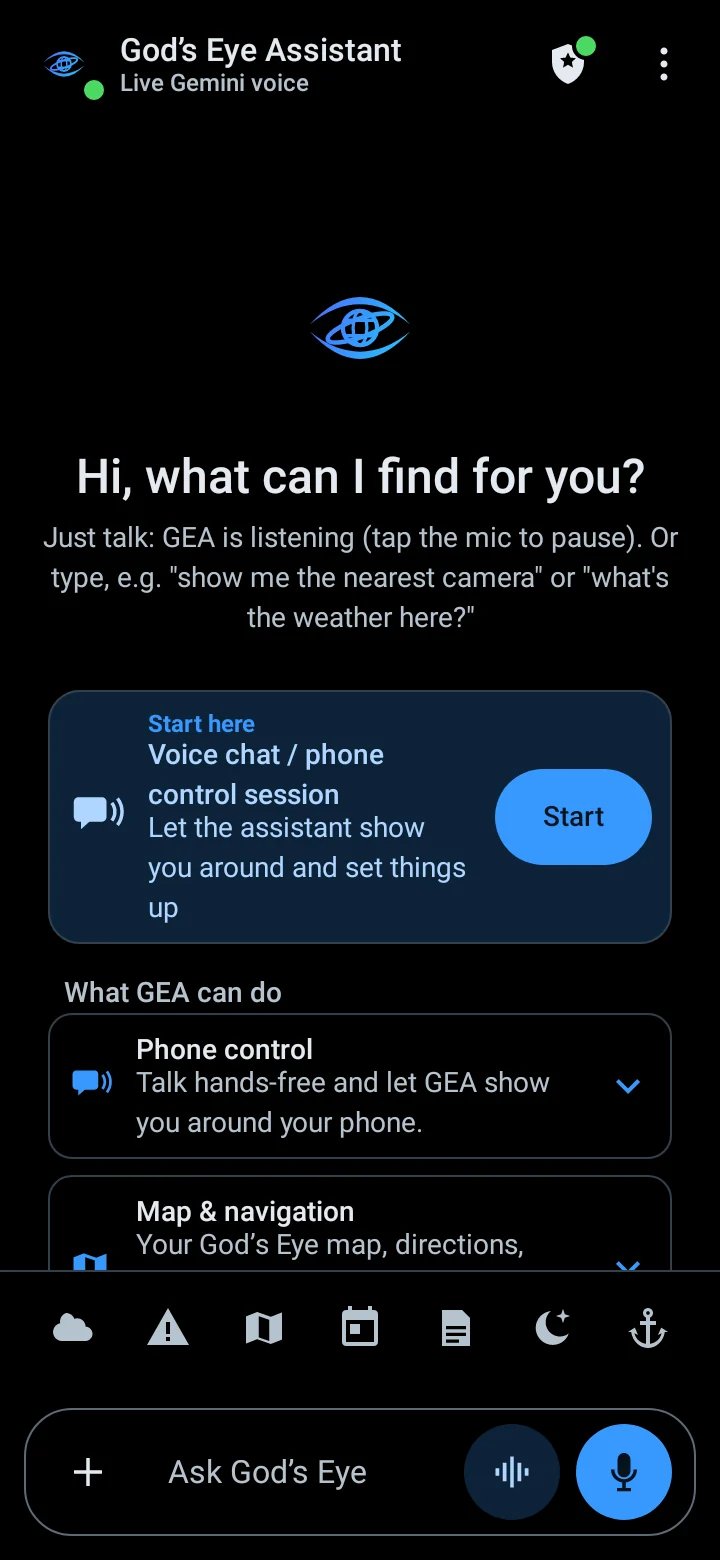
  • App home screen: a greeting, a Start here card for voice chat, cards listing what it can do, and the ask box.

    HomeTalk or type. The cards underneath show what it can do.

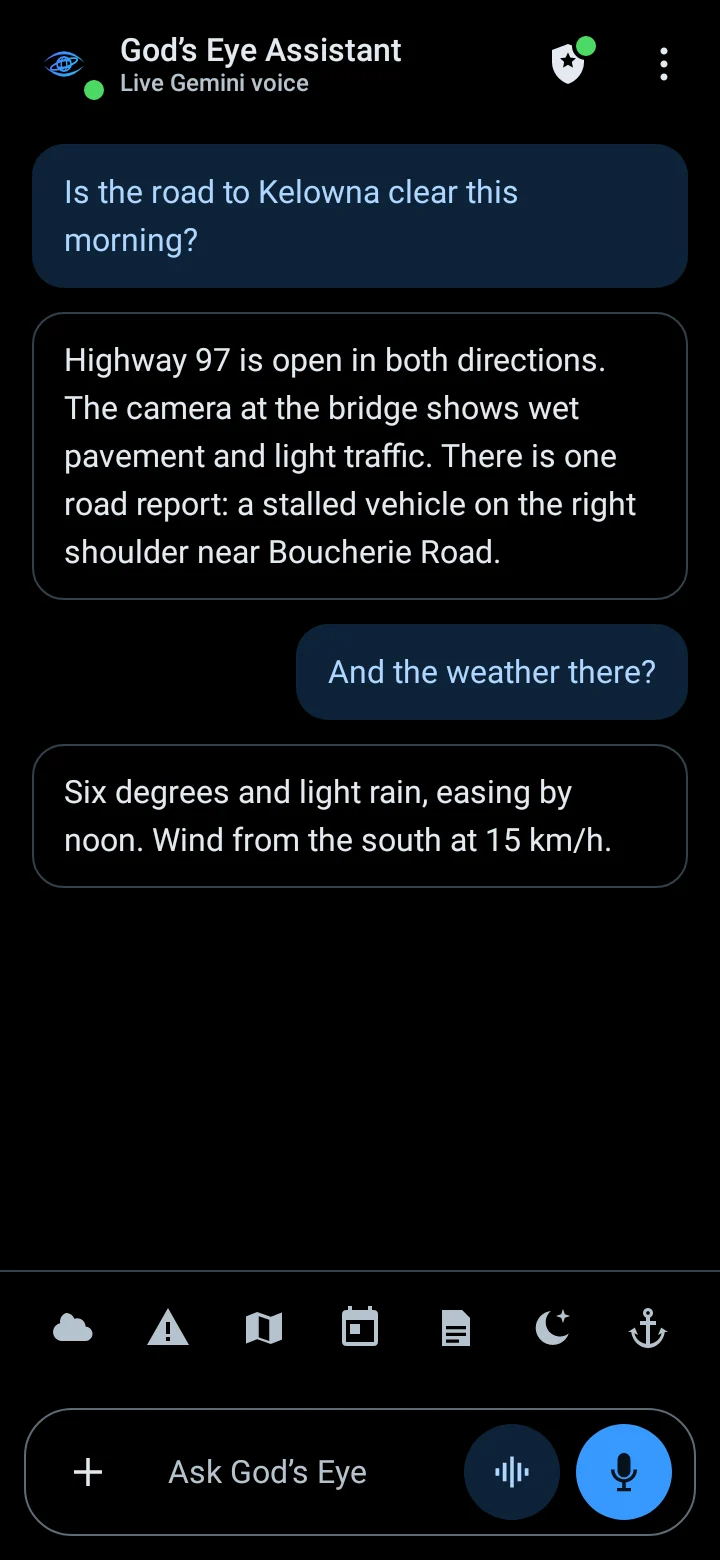
  • Chat screen: a question about the road to Kelowna and an answer about Highway 97, then the weather.

    A conversationRoad and weather for a drive, asked in two questions.

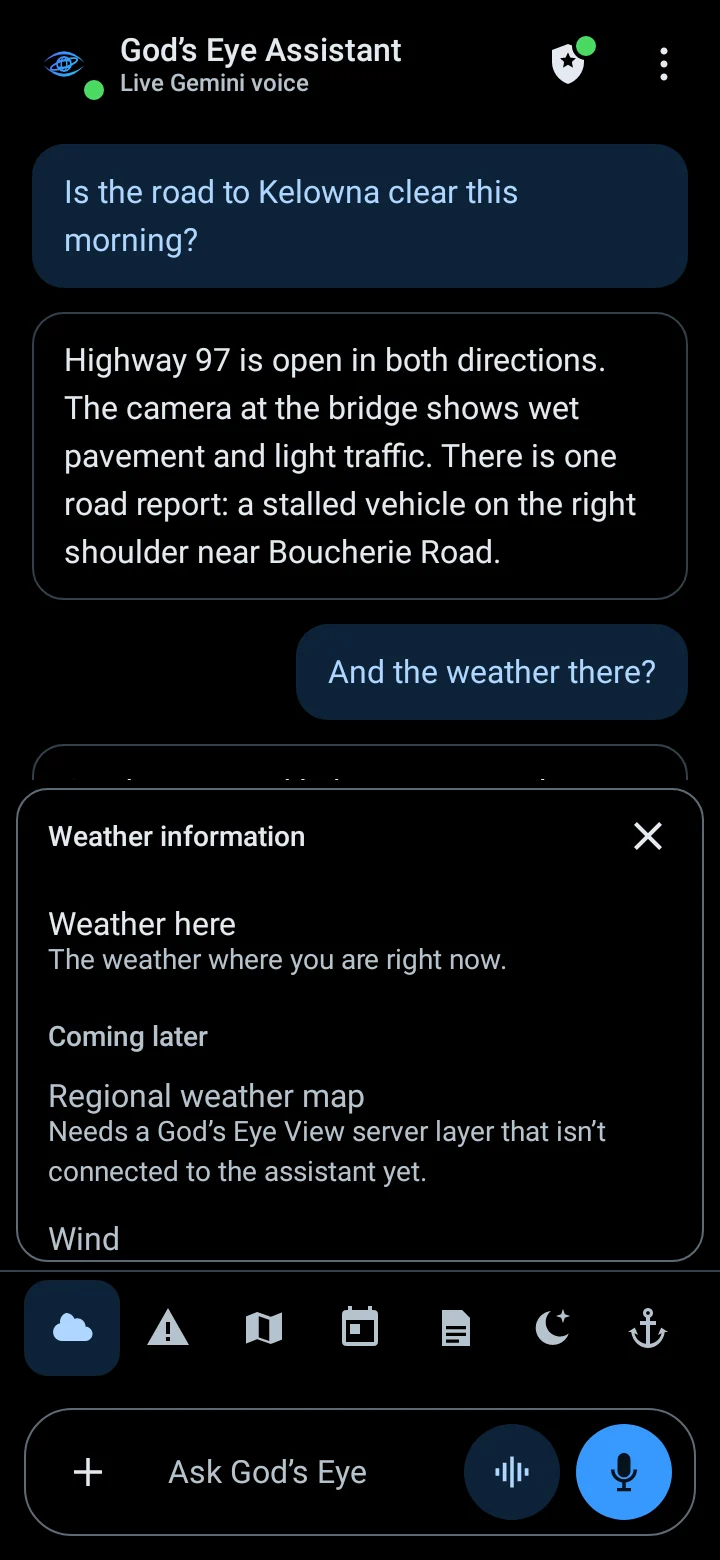
  • A weather information sheet slid up over the chat, with rows for weather here, coming later, regional weather map and wind.

    The weather sheetWeather here, what is coming, the regional map and wind.

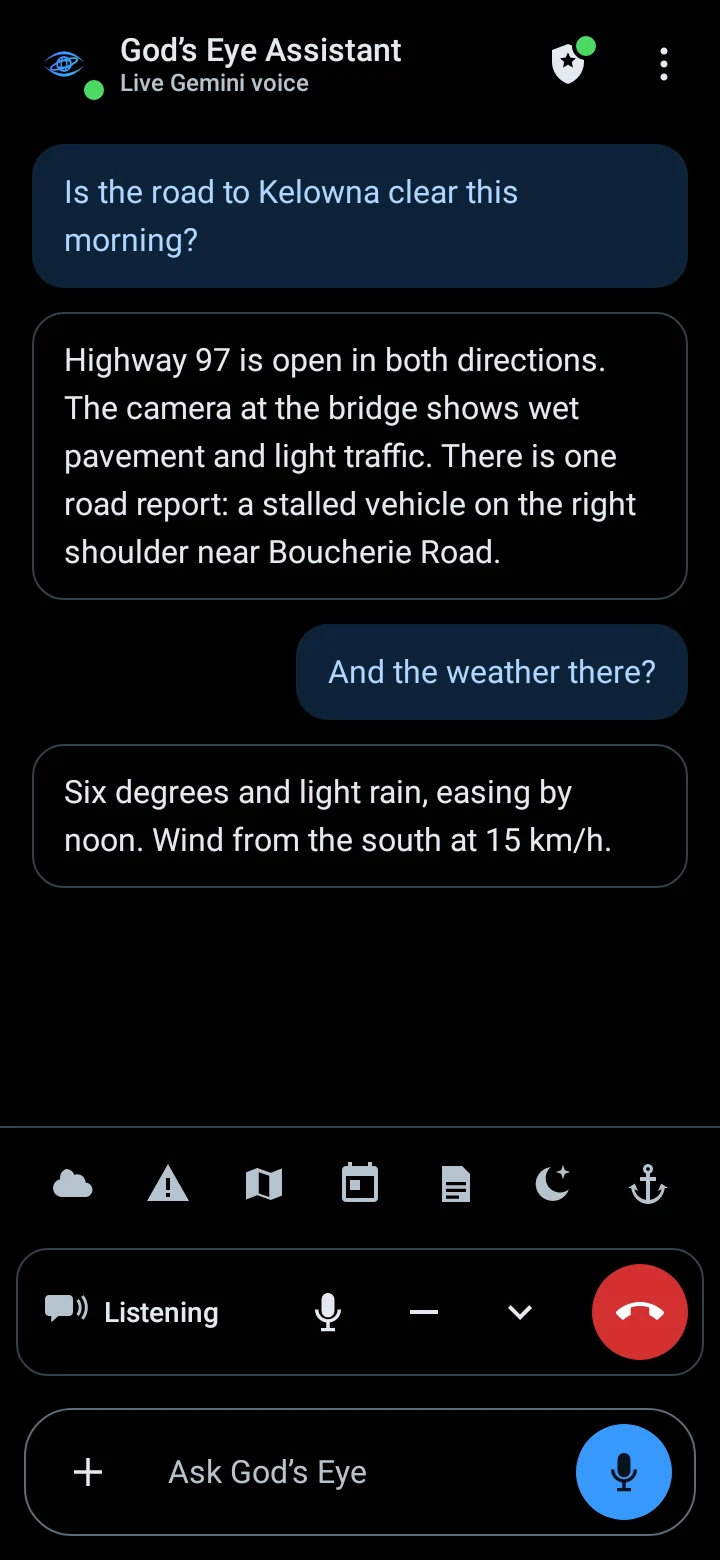
  • Chat screen with a Listening bar at the bottom.

    Voice chatHands-free, with a bar that shows it is listening.

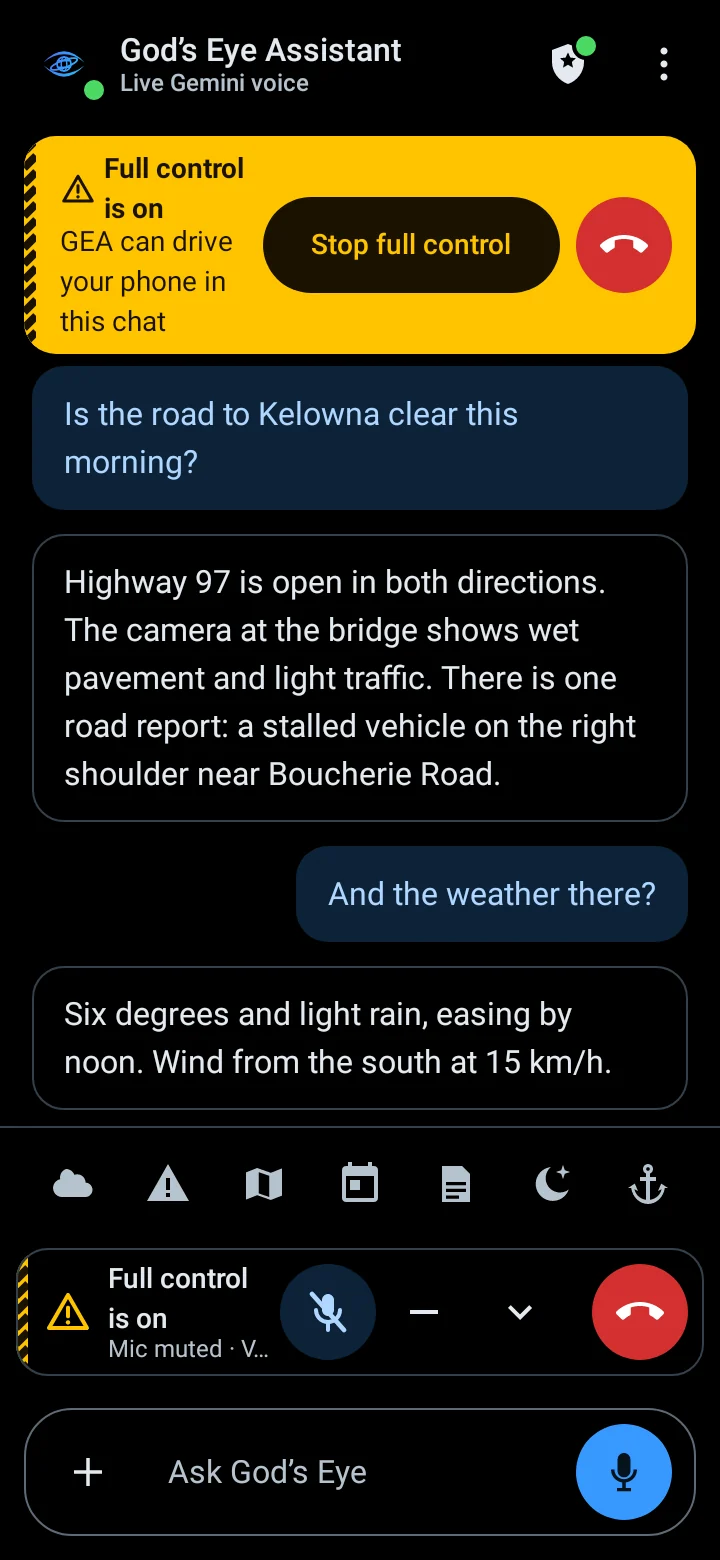
  • Chat screen with a yellow banner saying full control is on, and a Stop full control button.

    Full controlWhen it may work the phone, a banner says so and a Stop button is always there.

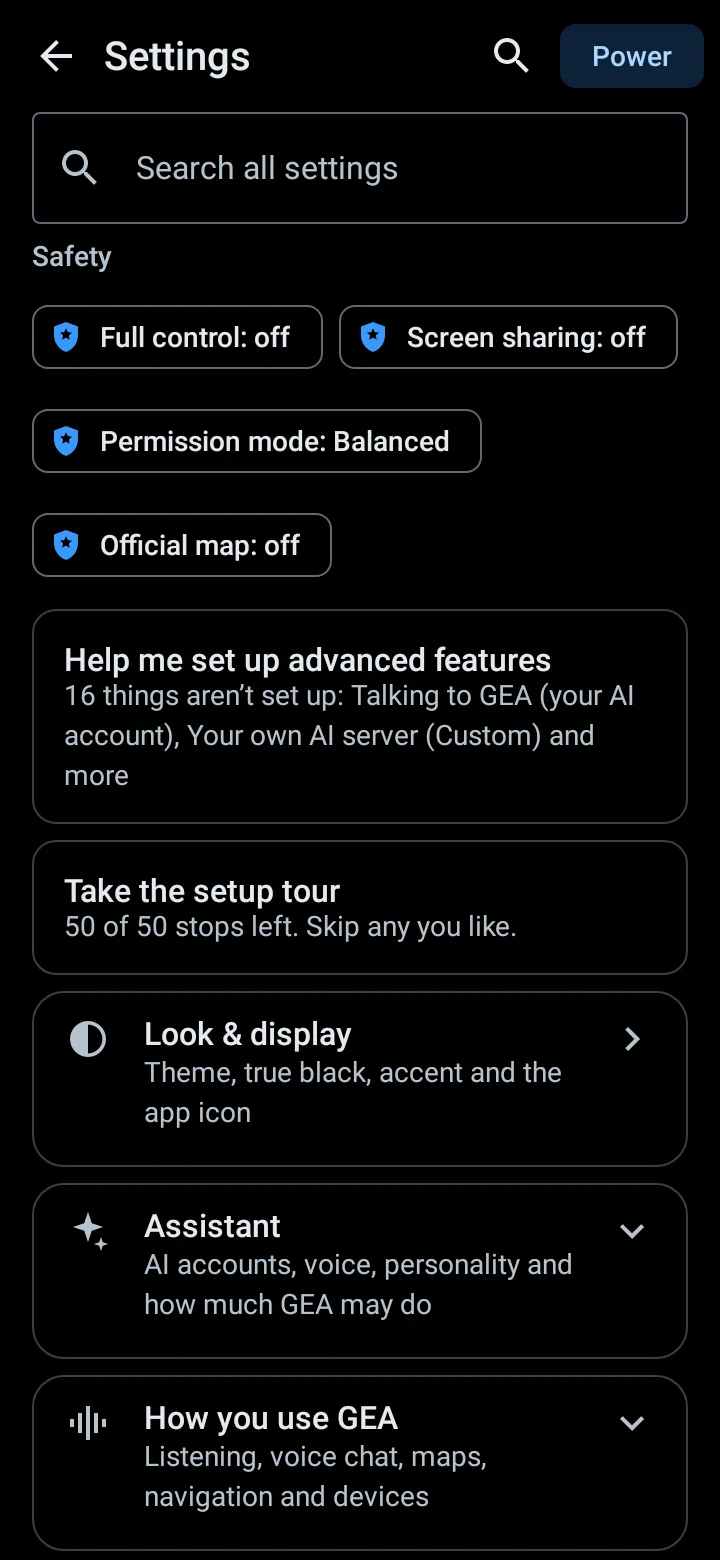
  • Settings screen: a search box, then safety switches for full control, screen sharing, permission mode and official map.

    SettingsSafety switches come first.

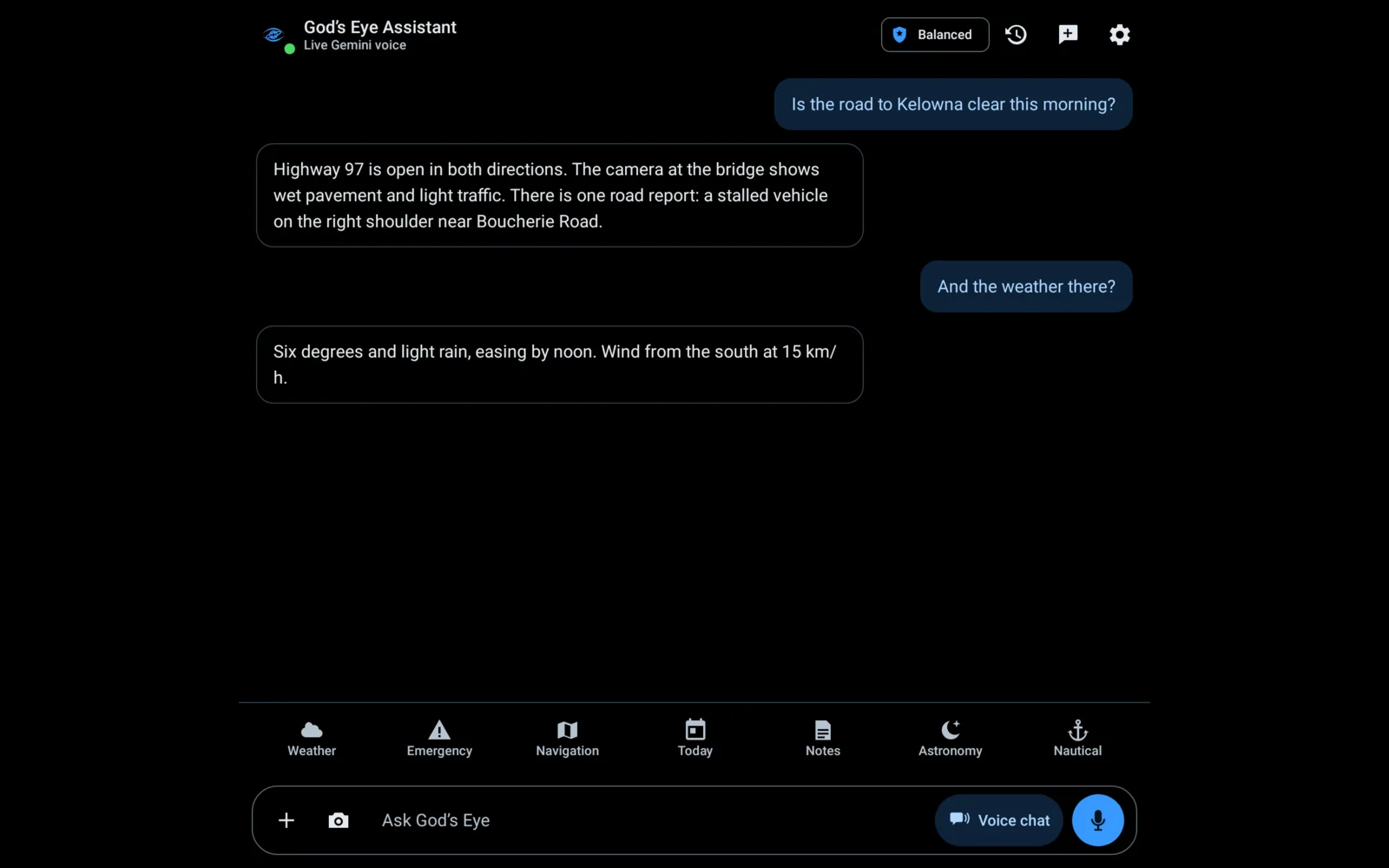
  • The chat screen on a tablet in landscape.

    On a tabletThe same conversation, laid out for a wider screen.

Mapping

Same question. With and without God's Eye View.

Without a map service, Protean hands a route to your phone's maps app. God's Eye View is the map service it can also use: with it, the answer arrives in the chat with what is happening on the road. Here is the same question both ways.

With your phone's maps app only

Is the road to Kelowna clear this morning?

I can open the route in your maps app. It shows live traffic and gives you turn-by-turn directions.

Open in maps

  • You get a route and live traffic from the maps app you already use.
  • You leave the conversation to read it.
  • Road cameras, road reports, fires and alerts are not part of the answer.

With God's Eye View mapping

Is the road to Kelowna clear this morning?

Highway 97 is open in both directions. The camera at the bridge shows wet pavement and light traffic. One road report: a stalled vehicle on the right shoulder near Boucherie Road.

Road camera at the bridge drawing, not a camera picture

  • Road report: stalled vehicle, right shoulder
  • Weather on the way: 6°, light rain
  • The answer stays in the chat: road reports, closures, weather and cameras along the route.
  • Ask about a place instead and you get a small map of the weather, cameras, fires and alerts around it.
  • You can still hand the route to your maps app for turn-by-turn.

To be fair

  • Your maps app is better at live traffic. God's Eye View does not judge whether traffic is heavier than normal, and the assistant will not guess.
  • Cameras and road reports exist only where public agencies publish them. Some places have many, some have none.
  • The examples above are sample conversations, written to show the shape of each answer. They are not recordings.
  • God's Eye View is not ours. It is an open-source project by Bilawal Sidhu. We run a server of it for the app, and you can run your own.

Plans

Free to use. Pay once for more. Subscribe only for what costs money to run.

Nothing is for sale yet. The app is in private testing and nothing in it is locked today. This page is the plan, so you know where it is going. Prices are not set.

The download

Free

$0

The app with no purchase. Useful by itself, with your own AI account.

One-time purchase, per pack

Feature packs

Price coming

Small purchases for the part you use. Each pack can be tried for one month first.

  • Maps and outdoors
  • Workshop and devices
  • Home and agents
  • Assistant plus

One-time purchase

Full lifetime unlock

Price coming

Every pack, on your own devices, for less than buying the packs one by one.

Subscription

God's Eye View mapping

Price coming

The map service on our server: the part that costs money to run every month.

How the plans work

Founding testers

Help shape it. Keep it for life.

Protean is being tested by a small group before anyone else gets it. Founding testers get the full feature set during testing, and the developer has promised them the full lifetime unlock free when paid features arrive. Things that cost money to run on a server, such as the mapping subscription, are separate.

  1. Apply. A short form. The developer reads every one himself.

  2. Get an invite. He replies the way you asked, with a link to make your account.

  3. Download and try it. The test build and what to try are in the testers area.

  4. Say what broke. Your reports go to the person building it.